
Guide - Inventory planning for suppliers
Inventory planning enables you to efficiently plan and control the execution of inventories.
by
Identify inventory requirements for the coming year
Define responsible persons for each asset
Plan schedules precisely and start inventories automatically according to the schedule
and track the processing.
Inventory planning is available for tooling coordinators (orca role IVL).
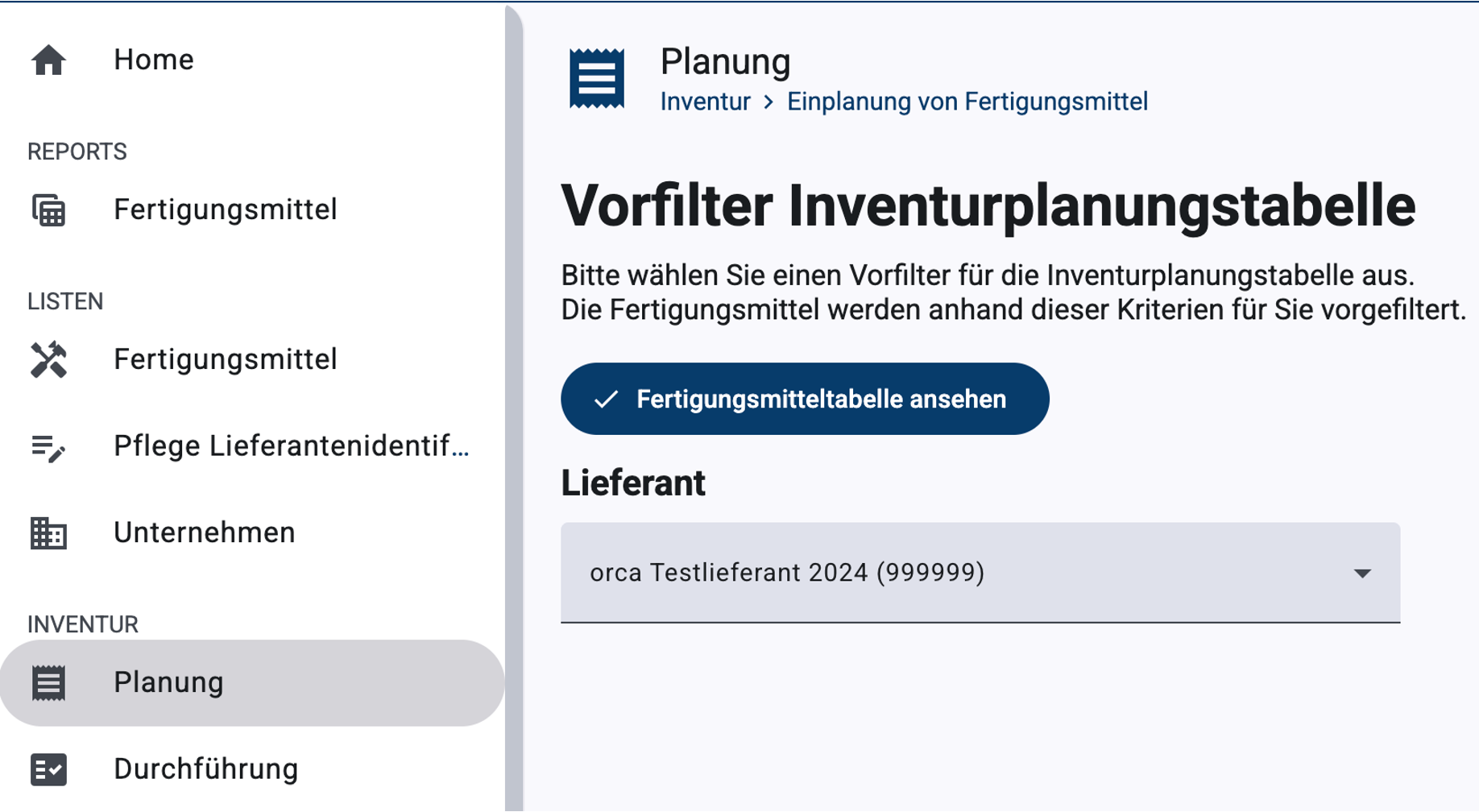
Go to the menu item Inventory - Planning.
In the prefilter, select the company for which you are planning.
Then "View tooling grid"
Notes:
If there is a main company, e.g., from the BMW Group Partner Portal, this will be preset as your selection.
The selection list contains all companies for which you are authorized, including any subsuppliers you have created. For planning purposes, please select a company that is a contractual partner to the owner for assets.
Call up planning grid
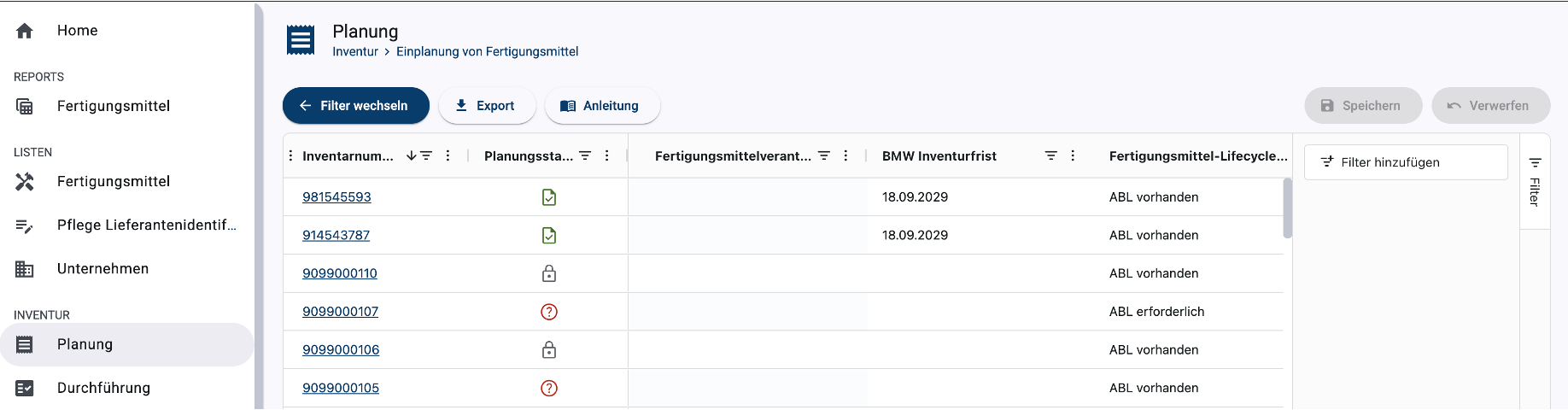
Scroll to the "BMW inventory due date" column. A date in this column indicates the deadline by which the inventory for the asset in the row must be carried out.
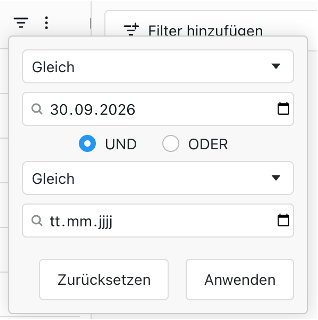
Set a filter using the filter icon to the right of the column header to filter specific dates. For the year 2026, for example, set the filter to September 30, 2026. Apply the filter ("Apply").
Notes:
The BMW inventory due date is also available in the assets report.
The BMW inventory due date is a date specified by the owner and cannot be changed during planning.
Identify inventory requirements
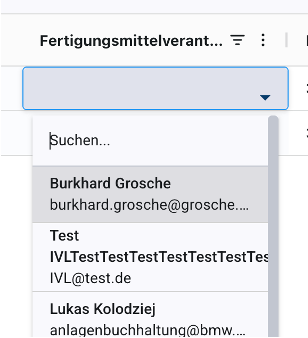
Scroll to the column "(tooling responsible person (supplier)".
Double-click on the cell for which you want to enter a responsible person.
Select a responsible person from the list of available tooling coordinators.
Inventory orders for the assets will be sent to it in the future (after saving).
Notes:
An entry can be copied to multiple cells. To do this, select the cell with a designated responsible person, select "Copy" from the right-click menu or press CTRL-C, select the target cells, and select "Paste" or press CTRL-V. The procedure is similar to that used in familiar spreadsheet software.
You can generally assign the persons responsible for assets, regardless of inventory planning for the coming year, for example.
For the 2026 scope, it is best to first assign responsible persons (filter by "Planned inventory due date" = September 30, 2026).
Don't forget to save in the top right corner.
Assign responsibilities
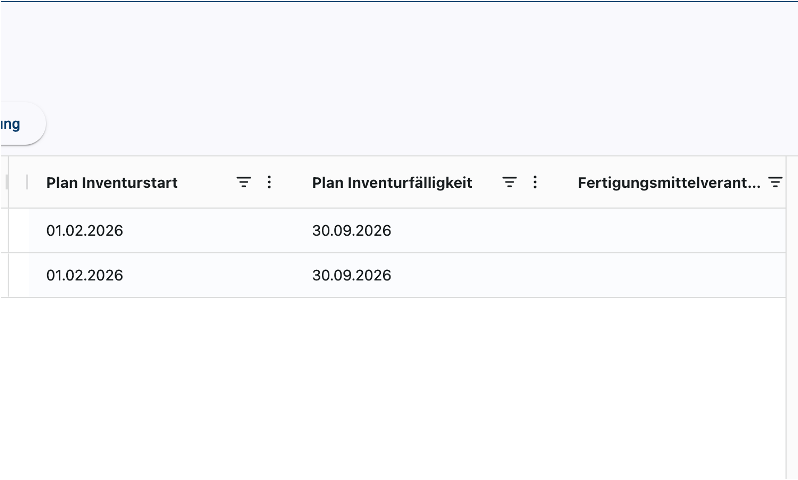
Scroll to the columns "Planned start of inventory" and "Planned inventory due date."
Double-click the cell whose date you want to change.
Select a new date.
Inventory orders for the assets are generated (after saving) with this date/dates.
Notes:
An entry can be copied to multiple cells. To do this, select the cell with a set appointment, select "Copy" from the right-click menu or press CTRL-C, select the target cells and select "Paste" or press CTRL-V. The procedure is similar to that used in familiar spreadsheet programs.
The planned inventory due date must not be scheduled later than the BMW inventory due date. An earlier due date makes sense from a planning perspective if assets can be completed internally earlier.
The planned start of inventory date is always before the planned inventory due date. Assets that need to be started earlier can be brought forward in the schedule.
Don't forget to save in the top right corner.
Plan schedule in detail
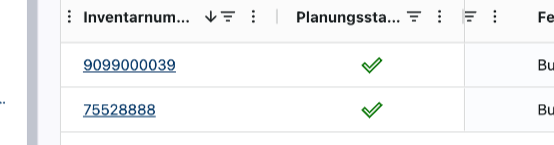
A green tick in the planning state indicates that the inventory can be started automatically according to the planned data ("Planned start of inventory" and"Planned inventory due date") for the specified tooling reponsible person.
Example:
Planned start of inventory = February 1, 2026
Planned inventory due date = July 31, 2026 (the location is to submit by the summer holidays).
Tooling responsible person = Martina Muster
Planned inventory type = company and location.
Then, on February 1, 2026, an inventory order will automatically be generated for Martina Muster, due on July 31, 2026. The inventory will take place without photos.
Start inventories automatically
A green tick in the planning state indicates that the inventory can be started automatically according to the planned data ("Planned start of inventory" and"Planned inventory due date") for the specified tooling reponsible person.
Question mark icon: At least one of the entries for the "green tick" is missing or is no longer valid. The cells are open for editing.
Locked icon: For production resources that are currently in an ongoing process. The cells are therefore not open for editing (grayed out).
For documents with a green tick: Inventory completed = Reported back and accepted by the client.
Notes:
Detailed information about the status of ongoing and completed processes is available in the assets report.