
Tooling Manager.
As the tool supervisor, you are the link between the tool coordinator and the inventory manager. You control and manage individual inventory sub-orders.
You control all your processes via your "user tasks" in the system.
You receive sub-orders and forward them to the inventory takers. This must have been created beforehand by your tool coordinator.
You also have the option of carrying out the inventory yourself. You can download a quick guide here.
When the inventory has been taken or the sub-orders have been processed, check them for completeness and correctness.
If everything is correct, return the sub-order to the tool coordinator.
If you want to add your own or internal information to the tools for the organisation of the inventory, you can do this in the area "Maintain supplier identification".
Overview and explanation of the buttons

1 - In the "production equipment" area you will find all the tools in your company.
2 - All open stocktaking orders can be found under "Stocktaking".
3 - Under the button you can call up the orca instructions.
4 - You control your inventory via "User tasks". You will be notified (red symbol) when new tasks are available for processing.
5 - Above the button, log out of orca.
This describes how to process a suborder in the system.
1. Click on "User tasks". Here you can start all your tasks and also close those after finishing the inventory. A small red symbol appears on the button for newly arrived tasks.

Select the "Take inventory" task for a specific inventory sub-task. To (re)find a specific task among several, a search and filter function is also available.

Now click on "Inventory" to open the inventory order.

Now the inventory can either be carried out by yourself (for instructions click "here"), or a sub-order can be created and forwarded. To do this, select "Suborders" and click on "New Suborder" in the three-point menu.

Name the subcontract and assign it to a company and a recipient. Click on "Create and add production tool".
Attention, company and recipient must have been created by the tool coordinator beforehand.

Select the tools to be added to this sub-task and click on "Add".

Click on the tab "Suborders" and on the three-dot menu of the suborder to be sent. Select "Send inventory order" here to send it.
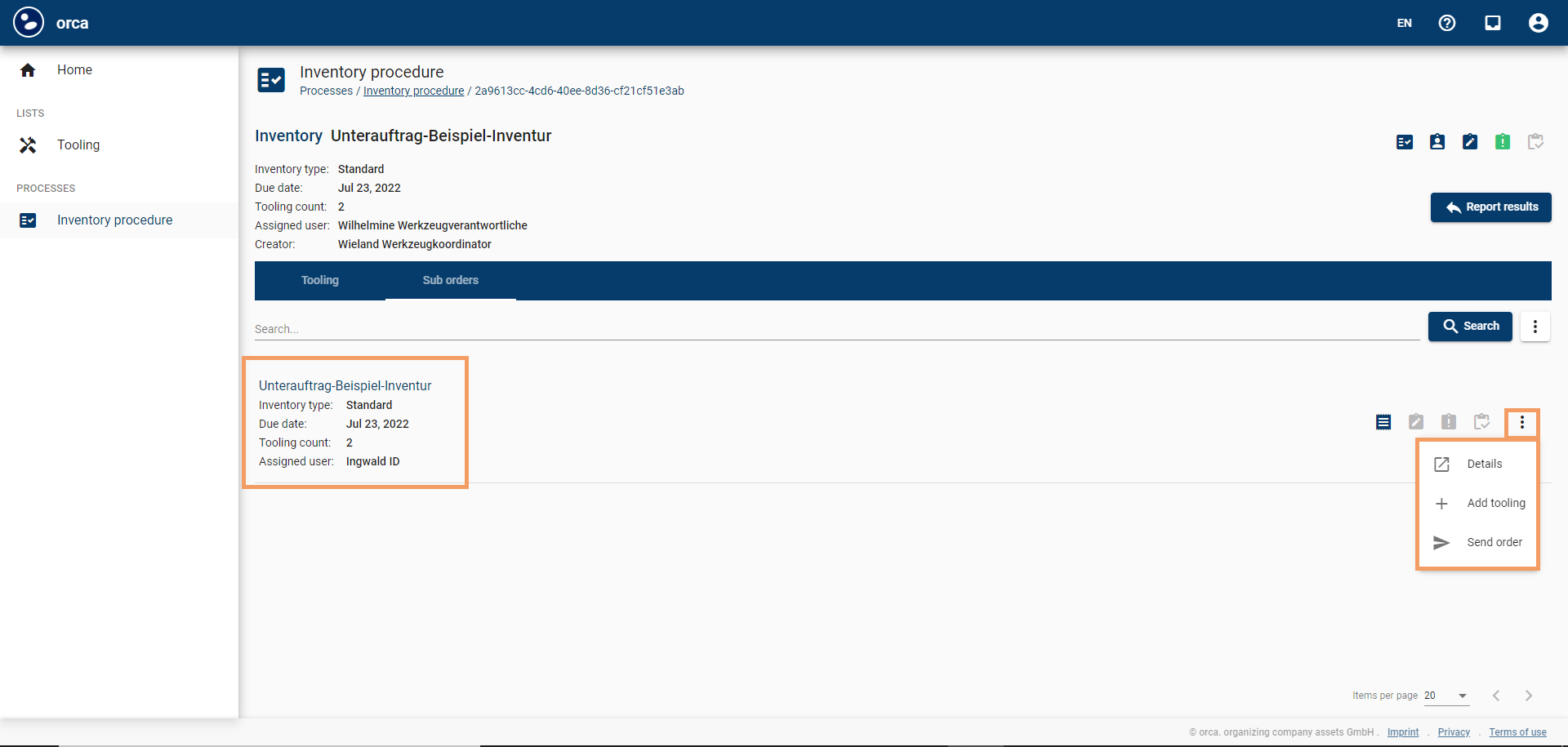
When the sub-order has been processed and returned, you will receive a new user task, the button with the "user tasks" is marked red again. Click on it again and select the task "Check confirmation of inventory suborder".

Select "Inventory" again to go to the sub-order.

10. now check the result. If you are not satisfied, you can send the sub-task "Send for correction". To clarify which tools are not OK, open them and select "Reject result" there.

When you are finished with the test, go back one step and click on "Finish task". The task is "ticked off" in your task list and appears with a green tick only in the completed tasks.

If you have corrected the sub-order, you must wait until you receive it again. If you were satisfied with the result, return to the original inventory order via the user task "Perform inventory".

Now you can confirm the sub-order to your tool coordinator. Please also note that a confirmation is only possible if all sub-orders belonging to this order have been confirmed (by the respective assigned user of the sub-order).

When the sub-task has been confirmed, you can "End task" in the user tasks. This completes the process for a subtask.
